layerButton
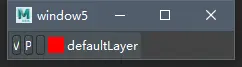
创建一个图层栏按钮部件。
这个小部件包含它是两层的名称和一个色卡,表明它是颜色的任务。
cmds.window()
cmds.columnLayout()
# 为默认图层创建一个按钮,将其着色为红色并选择它
b = cmds.layerButton(name='defaultLayer', cl=(1.0, 0.0, 0.0), s=True)
cmds.showWindow()
# 找出创建时图层按钮的宽度
width = cmds.layerButton(b ,q=True, labelWidth=True )
messageLine
此命令创建一条消息行,其中显示工具反馈
window = cmds.window()
form = cmds.formLayout()
frame = cmds.frameLayout(labelVisible=False)
cmds.messageLine()
cmds.formLayout( form, edit=True, attachNone=(frame, 'top'), attachForm=[(frame, 'left', 0), (frame, 'bottom', 0), (frame, 'right', 0)] )
cmds.showWindow( window )
nameField
此命令创建一个可编辑字段,该字段可链接到Maya对象的名称。该字段将始终显示对象的名称。
#    创建一个窗口包含一个name字段。 将name字段与一个球体。
window = cmds.window('window')
cmds.columnLayout( adjustableColumn=True )
sphereName = cmds.sphere()
field = cmds.nameField(object=sphereName[0])
cmds.showWindow( window )
#    重命名范围和注意,name字段更新
objectName = cmds.nameField(field, query=True, object=True)
cmds.rename( objectName, 'NewName' )

nodeTreeLister
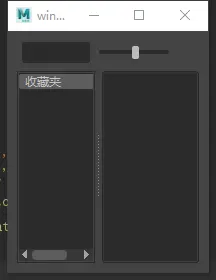
此命令创建/编辑/查询节点树列表器控件。 nodeTreeLister是一个treeLister,但假定项目具有返回依赖项节点名称的命令。支持从结果窗格拖动。
cmds.window(width=200)
cmds.formLayout('theForm')
cmds.nodeTreeLister('theTreeLister')
cmds.formLayout('theForm', e=True,
                af=(('theTreeLister', 'top', 0),
                    ('theTreeLister', 'left', 0),
                    ('theTreeLister', 'bottom', 0),
                    ('theTreeLister', 'right', 0)))
cmds.showWindow()
palettePort
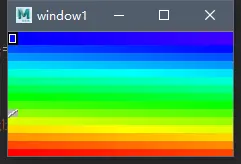
此命令创建一个颜色单元格数组。它可用于存储检索您在工作会话期间要管理的某些颜色。
cmds.window()
cmds.frameLayout(labelVisible=0)
# create a palette of 20 columns and 15 rows
cmds.palettePort( 'palette', dim=(20, 15) )
# select cell #30
cmds.palettePort( 'palette', edit=True, scc=30 )
# return RGB value for this cell
cmds.palettePort( 'palette', query=True, rgb=True )
# make cell #100 transparent and blue
cmds.palettePort( 'palette', edit=True, transparent=100, rgb=(100, 0.0, 0.0, 1.0) )
cmds.palettePort( 'palette', edit=True, redraw=True )
# returns the current transparent cell (there can be only one)
cmds.palettePort( 'palette', query=True, transparent=True )
cmds.showWindow()
picture
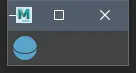
此命令创建静态图像。
window = cmds.window()
cmds.columnLayout()
cmds.picture( image='sphere.png' )
cmds.showWindow( window )
progressBar
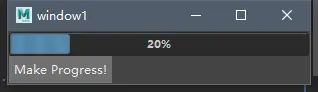
创建一个进度条控件,在其进度值增加时以图形方式填充。
import maya.cmds as cmds
# Create a custom progressBar in a windows ...

window = cmds.window()
cmds.columnLayout()

progressControl = cmds.progressBar(maxValue=10, width=300)
cmds.button( label='Make Progress!', command='cmds.progressBar(progressControl, edit=True, step=1)' )

cmds.showWindow( window )
# Or, to use the progress bar in the main window ...

import maya.mel
gMainProgressBar = maya.mel.eval('$tmp = $gMainProgressBar')

cmds.progressBar( gMainProgressBar,
                edit=True,
                beginProgress=True,
                isInterruptable=True,
                status='Example Calculation ...',
                maxValue=5000 )

for i in range(5000) :
    if cmds.progressBar(gMainProgressBar, query=True, isCancelled=True ) :
        break

    cmds.progressBar(gMainProgressBar, edit=True, step=1)

cmds.progressBar(gMainProgressBar, edit=True, endProgress=True)
radioButton
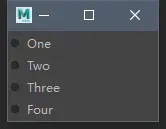
如果未使用-cl / collection标志,此命令将创建一个单选按钮,该按钮将添加到最近创建的无线电集合中。
cmds.window( width=150 )
cmds.columnLayout( adjustableColumn=True )
cmds.radioCollection()
cmds.radioButton( label='One' )
cmds.radioButton( label='Two' )
cmds.radioButton( label='Three' )
cmds.radioButton( label='Four' )
cmds.showWindow()
radioButtonGrp
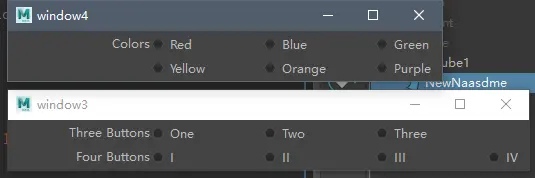
此命令在一行中创建一到四个单选按钮。默认情况下,单选按钮将共享一个集合,但它们也可以共享另一个单选按钮组的集合。按钮还可以具有可选的文本标签。
#    Create a window with two separate radio button groups.
#
window = cmds.window()
cmds.columnLayout()
cmds.radioButtonGrp( label='Three Buttons', labelArray3=['One', 'Two', 'Three'], numberOfRadioButtons=3 )
cmds.radioButtonGrp( label='Four Buttons', labelArray4=['I', 'II', 'III', 'IV'], numberOfRadioButtons=4 )
cmds.showWindow( window )
#    Create a window with two radio button groups that are
#    linked together.
#
window = cmds.window()
cmds.columnLayout()
group1 = cmds.radioButtonGrp( numberOfRadioButtons=3, label='Colors', labelArray3=['Red', 'Blue', 'Green'] )
cmds.radioButtonGrp( numberOfRadioButtons=3, shareCollection=group1, label='', labelArray3=['Yellow', 'Orange', 'Purple'] )
cmds.showWindow( window )
radioCollection
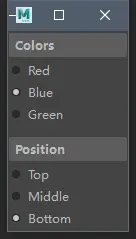
这个命令创建一个单选按钮组。
cmds.window()
cmds.columnLayout( adjustableColumn=True, rowSpacing=10 )
cmds.frameLayout( label='Colors' )
cmds.columnLayout()
collection1 = cmds.radioCollection()
rb1 = cmds.radioButton( label='Red' )
rb2 = cmds.radioButton( label='Blue' )
rb3 = cmds.radioButton( label='Green' )
cmds.setParent( '..' )
cmds.setParent( '..' )

cmds.frameLayout( label='Position' )
cmds.columnLayout()
collection2 = cmds.radioCollection()
rb4 = cmds.radioButton( label='Top' )
rb5 = cmds.radioButton( label='Middle' )
rb6 = cmds.radioButton( label='Bottom' )
cmds.setParent( '..' )
cmds.setParent( '..' )

cmds.radioCollection( collection1, edit=True, select=rb2 )
cmds.radioCollection( collection2, edit=True, select=rb6 )
cmds.showWindow()
rangeControl
此命令创建用于显示和修改当前播放范围的控件。注意:可能只存在一个主范围控制。用户创建的任何添加范围控件都从属于主范围控件小部件。
cmds.window()
cmds.frameLayout( lv=False )
cmds.playbackOptions( minTime=0, maxTime=30 )
cmds.rangeControl( 'myRangeSlider', minRange=0, maxRange=60 )
cmds.showWindow()
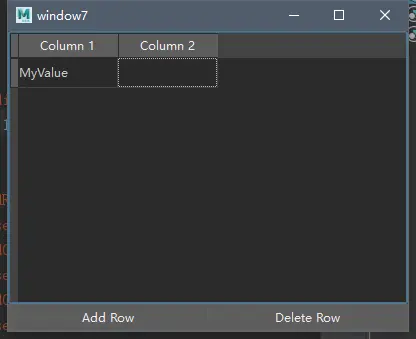
scriptTable
此命令创建/编辑/查询脚本表控件
def edit_cell(row, column, value):
    return 1

window = cmds.window(widthHeight=(400, 300))
form = cmds.formLayout()
table = cmds.scriptTable(rows=4, columns=2, label=[(1,"Column 1"), (2,"Column 2")], cellChangedCmd=edit_cell)

addButton = cmds.button(label="Add Row",command="cmds.scriptTable(table, edit=True,insertRow=1)")
deleteButton = cmds.button(label="Delete Row",command="cmds.scriptTable(table, edit=True,deleteRow=1)")

cmds.formLayout(form, edit=True, attachForm=[(table, 'top', 0), (table, 'left', 0), (table, 'right', 0), (addButton, 'left', 0), (addButton, 'bottom', 0), (deleteButton, 'bottom', 0), (deleteButton, 'right', 0)], attachControl=(table, 'bottom', 0, addButton), attachNone=[(addButton, 'top'),(deleteButton, 'top')],  attachPosition=[(addButton, 'right', 0, 50), (deleteButton, 'left', 0, 50)] )

cmds.showWindow( window )
# Set and query cells
cmds.scriptTable(table, cellIndex=(1,1), edit=True, cellValue="MyValue")
print cmds.scriptTable(table, cellIndex=(1,1), query=True, cellValue=True)
# Select and query rows, columns and cells
cmds.scriptTable(table, edit=True, selectedRows=[1, 3])
print cmds.scriptTable(table, query=True, selectedRows=True)
cmds.scriptTable(table, edit=True, selectedColumns=[1])
print cmds.scriptTable(table, query=True, selectedColumns=True)
cmds.scriptTable(table, edit=True, selectedCells=[1,2,2,1,3,2,4,1])
print cmds.scriptTable(table, query=True, selectedCells=True)
# Set a filter for the first column
cmds.scriptTable(table, edit=True, columnFilter=(1,"MyValue"))
# Set a filter for all columns
cmds.scriptTable(table, edit=True, columnFilter=(0,"MyValue"))
scrollField
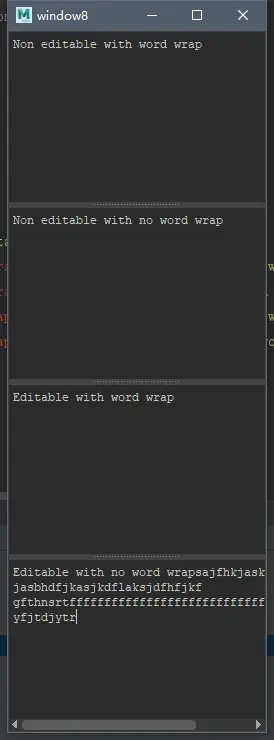
此命令创建一个滚动字段,用于处理多行文本。
cmds.window()
cmds.paneLayout( configuration='horizontal4' )
cmds.scrollField( editable=False, wordWrap=True, text='Non editable with word wrap' )
cmds.scrollField( editable=False, wordWrap=False, text='Non editable with no word wrap' )
cmds.scrollField( editable=True, wordWrap=True, text='Editable with word wrap' )
cmds.scrollField( editable=True, wordWrap=False, text='Editable with no word wrap' )
cmds.showWindow()
separator
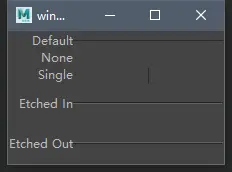
此命令以各种绘图样式创建分隔符窗口小部件。
cmds.window()
cmds.rowColumnLayout( numberOfColumns=2, columnAlign=(1, 'right'), columnAttach=(2, 'both', 0), columnWidth=(2, 150) )

cmds.text( label='Default' )
cmds.separator()
cmds.text( label='None' )
cmds.separator( style='none' )
cmds.text( label='Single' )
cmds.separator( style='single' )
cmds.text( label='Etched In' )
cmds.separator( height=40, style='in' )
cmds.text( label='Etched Out' )
cmds.separator( height=40, style='out' )
cmds.setParent( '..' )
cmds.showWindow()
shelfButton
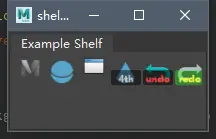
这个控制支持多达3图标图像和4种不同的显示风格。
图标的图像显示的是最适合的当前大小控制给定当前的风格。
window = cmds.window( title = 'shelfButton Example')
tabs = cmds.tabLayout()
shelf = cmds.shelfLayout()
#    Create some shelf buttons...
#
#    1.  A button that prints a message to the Command Line.
#
cmds.shelfButton( annotation='Print "Hello".', image1='commandButton.png', command='print "Hello\\n"' )
#    2.  A button that will create a sphere.
#
cmds.shelfButton( annotation='Create a sphere.', image1='sphere.png', command='cmds.sphere()' )
#    3.  A button that will open the Attribute Editor window.
#
cmds.shelfButton(annotation='Show the Attribute Editor.', image1='menuIconWindow.png', command='import maya.mel; maya.mel.eval("openAEWindow")' )
#    4.  A button with a label that will create a cone
#
cmds.shelfButton(annotation='Create a cone.', image1='cone.png', command='cmds.cone()', imageOverlayLabel='4th')
#    5.  A button with a label and color that will call undo
#
cmds.shelfButton(annotation="Undo last operation.",
    image1="undo.png", command="undo", imageOverlayLabel="undo",
    overlayLabelColor=(1, .25, .25))
#    6.  A button with a label, color and background that will call redo
#
cmds.shelfButton(annotation="Redo last operation.",
    image1="redo.png", command="redo", imageOverlayLabel="redo",
    overlayLabelColor=(1, 1, .25), overlayLabelBackColor=(.15, .9, .1, .4))

cmds.tabLayout( tabs, edit=True, tabLabel=(shelf, 'Example Shelf') )

cmds.showWindow( window )
soundControl
此命令创建一个控件,用于更改当前时间和刮擦/擦除声音文件。
# To display sound in a soundControl, there must first be a sound
# node in the scene. We'll create one and give it the name "ohNo".
# Note that the argument to the -file flag must be a path to a valid
# soundfile.
#
cmds.sound( file='ohNo.aiff', name='ohNo' )
# Create a sound control (named "soundScrubber")
# and have it display the sound associated with audio node "ohNo".
#
cmds.window()
cmds.frameLayout( lv=False )
cmds.soundControl( 'soundScrubber', width=600, height=45, sound='ohNo', displaySound=True, waveform='both' )
cmds.showWindow()
# Now setup "soundScrubber" to actually scrub with
# mouse drags.
#
pressCmd = "soundControl -e -beginScrub soundScrubber"
releaseCmd = "soundControl -e -endScrub soundScrubber"
cmds.soundControl( 'soundScrubber', e=True, pc=cmds.soundControl('soundScrubber',e=True,beginScrub=True, rc=cmds.sound('soundScrubber',e=True,endScrub=True)))
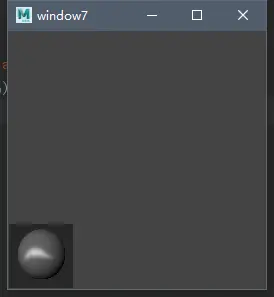
swatchDisplayPort
此命令将创建一个3dPort,用于显示表示着色节点的样本。 可选参数是3dPort的名称。
cmds.window()
cmds.columnLayout('r')
myShader = cmds.shadingNode('anisotropic', asShader=True)
cmds.swatchDisplayPort('slPP', wh=(256, 256), sn=myShader)
cmds.showWindow()
switchTable
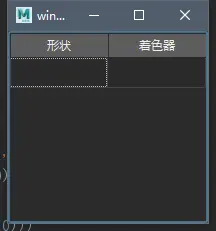
此命令创建/编辑/查询切换表控件。 可选参数是控件的名称。
cmds.window(width=200)
cmds.formLayout('theForm')
cmds.switchTable('theSwitch')
cmds.formLayout('theForm', e=True,
                af=(('theSwitch', 'top', 0),
                    ('theSwitch', 'left', 0),
                    ('theSwitch', 'bottom', 0),
                    ('theSwitch', 'right', 0)))
cmds.showWindow()
symbolButton
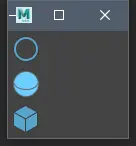
这个命令创建一个符号按钮。
按钮标志像一个普通按钮,唯一的区别是一个象征按钮显示一个图像,一个文本标签。
命令可以被附加到这个按钮时,将执行按钮被按下。
cmds.window()
cmds.columnLayout()
cmds.symbolButton( image='circle.png' )
cmds.symbolButton( image='sphere.png' )
cmds.symbolButton( image='cube.png' )
cmds.showWindow()
symbolCheckBox
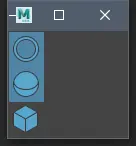
这个命令创建一个复选框象征。
象征复选框包含象素映射是一个简单的控制和状态。命令可以被附加到任何或所有下列事件:当象征复选框打开,关闭,或者只是当状态改变。
cmds.window()
cmds.columnLayout()
cmds.symbolCheckBox( image='circle.png' )
cmds.symbolCheckBox( image='sphere.png' )
cmds.symbolCheckBox( image='cube.png' )
cmds.showWindow()
text
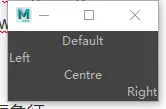
创建一个简单的文本标签控件。
cmds.window( width=150 )
cmds.columnLayout( adjustableColumn=True )
cmds.text( label='Default' )
cmds.text( label='Left', align='left' )
cmds.text( label='Centre', align='center' )
cmds.text( label='Right', align='right' )
cmds.showWindow()
textField
创建文本字段控件。
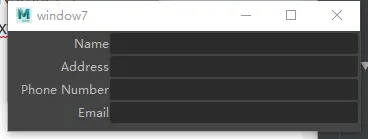
#    Create a window with a some fields for entering text.
#
window = cmds.window()
cmds.rowColumnLayout( numberOfColumns=2, columnAttach=(1, 'right', 0), columnWidth=[(1, 100), (2, 250)] )
cmds.text( label='Name' )
name = cmds.textField()
cmds.text( label='Address' )
address = cmds.textField()
cmds.text( label='Phone Number' )
phoneNumber = cmds.textField()
cmds.text( label='Email' )
email = cmds.textField()
#    如果按下Enter键,则附加命令以将焦点传递到下一个字段。只按回车键将保持焦点在当前字段中。
cmds.textField( name, edit=True, enterCommand=('cmds.setFocus(\"' + address + '\")') )
cmds.textField( address, edit=True, enterCommand=('cmds.setFocus(\"' + phoneNumber + '\")') )
cmds.textField( phoneNumber, edit=True, enterCommand=('cmds.setFocus(\"' + email + '\")') )
cmds.textField( email, edit=True, enterCommand=('cmds.setFocus(\"' + name + '\")') )

cmds.showWindow( window )
textFieldButtonGrp
此命令将向textFieldGrp命令添加一个按钮。
window = cmds.window()
cmds.columnLayout()
cmds.textFieldButtonGrp( label='Label', text='Text', buttonLabel='Button' )
cmds.showWindow( window )

textFieldGrp
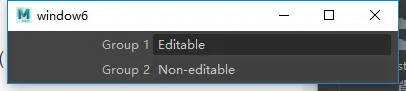
此命令创建标签文本和可编辑文本字段的预打包集合。标签文本是可选的。
cmds.window()
cmds.columnLayout()
cmds.textFieldGrp( label='Group 1', text='Editable' )
cmds.textFieldGrp( label='Group 2', text='Non-editable', editable=False )
cmds.showWindow()
textScrollList
此命令创建/编辑/查询文本滚动列表。该列表可以是单选模式,其中仅选择一个时间项,或者在多选模式中可以选择许多项。
cmds.window()
cmds.paneLayout()
cmds.textScrollList( numberOfRows=8, allowMultiSelection=True,
            append=['one', 'two', 'three', 'four', 'five', 'six', 'seven', 'eight', 'nine', 'ten',
                    'eleven', 'twelve', 'thirteen', 'fourteen', 'fifteen'],
            selectItem='six', showIndexedItem=4 )
cmds.showWindow()

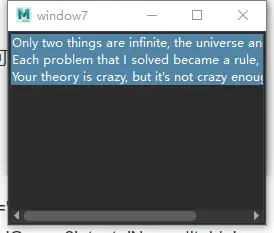
cmds.window()
cmds.paneLayout()
cmds.textScrollList( "myControlObj", allowMultiSelection=True,
            append=[ "Only two things are infinite, the universe and human stupidity, and I'm not sure about the former.",
                     "Each problem that I solved became a rule, which served afterwards to solve other problems."],
            uniqueTag=["Albert Einstein","Rene Descartes"])
cmds.showWindow()
cmds.textScrollList( "myControlObj", edit=True, selectUniqueTagItem=["Albert Einstein"])
cmds.textScrollList( "myControlObj", query=True, selectUniqueTagItem=True)
cmds.textScrollList( "myControlObj", edit=True, append=["Your theory is crazy, but it's not crazy enough to be true."],
                                                uniqueTag=["Niels Bohr"] )
cmds.textScrollList( "myControlObj", edit=True, selectUniqueTagItem=["Rene Descartes", "Niels Bohr"])
cmds.textScrollList( "myControlObj", query=True, selectUniqueTagItem=True)
timeControl
此命令创建一个控件,可用于更改当前时间,显示/编辑键以及显示/擦除声音。
# To display sound in the time slider, there must first be a sound
# node in the scene. We'll create one and give it the name "ohNo".
# Note that the argument to the -file flag must be a path to a valid
# soundfile.
#
cmds.sound( file='C:/My Documents/maya/projects/default/sound/ohNo.aiff', name='ohNo' )

# To display sound in the time slider, you must specify
# the sound node to display and turn display of sound "on."
# First we need to get the name of the playback slider from
# the global mel variable called gPlayBackSlider
#
import maya.mel
aPlayBackSliderPython = maya.mel.eval('$tmpVar=$gPlayBackSlider')
cmds.timeControl( aPlayBackSliderPython, e=True, sound='ohNo', displaySound=True )
# To hear sound while scrubbing in the time slider, set the press and
# release commands to begin and end sound scrubbing.
#
cmds.timeControl( aPlayBackSliderPython,edit=True,pressCommand='cmds.timeControl(aPlayBackSliderPython,edit=True,beginScrub=True)')
cmds.timeControl( aPlayBackSliderPython,edit=True,releaseCommand='cmds.timeControl(aPlayBackSliderPython,edit=True,endScrub=True)')
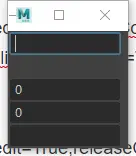
timeField
创建仅接受时间值的字段控件。
window = cmds.window()
cmds.columnLayout()
cmds.timeField()
cmds.timeField( editable=False )
cmds.timeField( value=0 )
cmds.timeField( precision=2 )
cmds.timeField( precision=4, step=.01 )
cmds.showWindow( window )
timeFieldGrp
此命令创建标签文本和可编辑时间字段的预打包集合。标签文本是可选的,可以创建一到四个时间字段。
window = cmds.window()
cmds.columnLayout()
cmds.timeFieldGrp( numberOfFields=3, label='Scale', extraLabel='cm', value1=0.3, value2=0.5, value3=0.1 )
cmds.showWindow( window )

timePort
此命令创建一个简单的时间控件小部件。
另请参见“timeControl”命令。
# Create a window that has a timePort in it
#
cmds.window( w=500, h=35 )
cmds.columnLayout()
cmds.timePort( 'myTimePort' )
cmds.showWindow()
# Turn snapping off on the above timePort
#
cmds.timePort( 'myTimePort', e=True, snap=False )
Create a window that has a timePort in it
cmds.window( w=500, h=35 )
cmds.columnLayout()
cmds.timePort( 'myTimePort' )
cmds.showWindow()
# Turn snapping off on the above timePort

cmds.timePort( 'myTimePort', e=True, snap=False )
toolButton
除非使用cl / collection标志,否则此命令将创建一个添加到最近创建的工具按钮集合的toolButton。它还附加了命名工具,在选择此控件时激活它
cmds.window()
cmds.columnLayout()
cmds.toolCollection()
cmds.toolButton( tool='selectSuperContext', toolImage1=('selectSuperContext', 'aselect.xpm') )
cmds.toolButton( tool='moveSuperContext', toolImage1=('moveSuperContext', 'move_M.xpm') )
cmds.toolButton( tool='scaleSuperContext', toolImage1=('scaleSuperContext', 'scale_M.png') )
cmds.showWindow()
# example showing how to create tool buttons for artisan tools
# create the contexts

selectCtx = cmds.artSelectCtx()
puttyCtx = cmds.artPuttyCtx()
setPaintCtx = cmds.artSetPaintCtx()

cmds.window()
cmds.gridLayout()
cmds.toolCollection()
# create the tool buttons using the contexts returned

cmds.toolButton(
amt=True, piv=True,
doubleClickCommand='cmds.toolPropertyWindow()',
tool=(selectCtx, puttyCtx, setPaintCtx),
toolImage1=(selectCtx, 'artSelect.xpm'),
toolImage2=(puttyCtx, 'putty.png'),
toolImage3=(setPaintCtx, 'paintSetMembership.png') )
cmds.showWindow()
toolCollection
此命令创建工具按钮集合。
cmds.window()
cmds.columnLayout()
cmds.toolCollection()
cmds.toolButton( tool='selectSuperContext', toolImage1=('selectSuperContext', 'aselect.xpm') )
cmds.toolButton( tool='moveSuperContext', toolImage1=('moveSuperContext', 'move_M.png') )
cmds.toolButton( tool='scaleSuperContext', toolImage1=('scaleSuperContext', 'scale_M.png') )
cmds.showWindow()